
Refreshing transaction data
If it appears that a transaction's details are not represented correctly in your Zodl wallet, you may use the tool below to fetch and reconsider the data of a given transaction.
Identify the Transaction ID
Access the transaction in question in your wallet's Activity list. In the list of transaction details, tap the copy button next to the field 'Transaction ID'.
Using the 'Refresh Transaction Data' tool
1. Copy the transaction ID to your phone's clipboard
2. Go to the Settings screen ('...' > 'More'), and double-tap on the ZODL logo at the bottom.
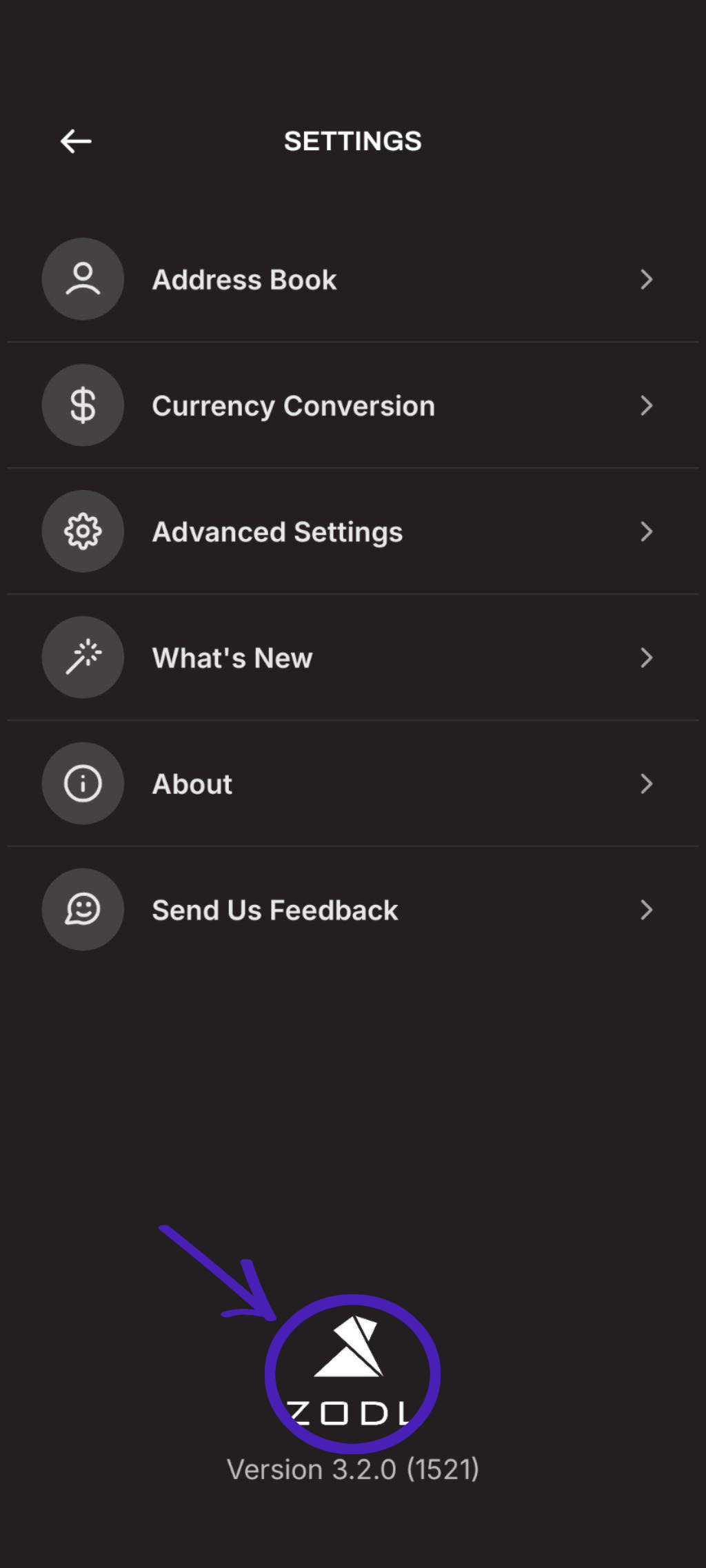
- Paste the transaction ID in the tool and tap 'Fetch Data'
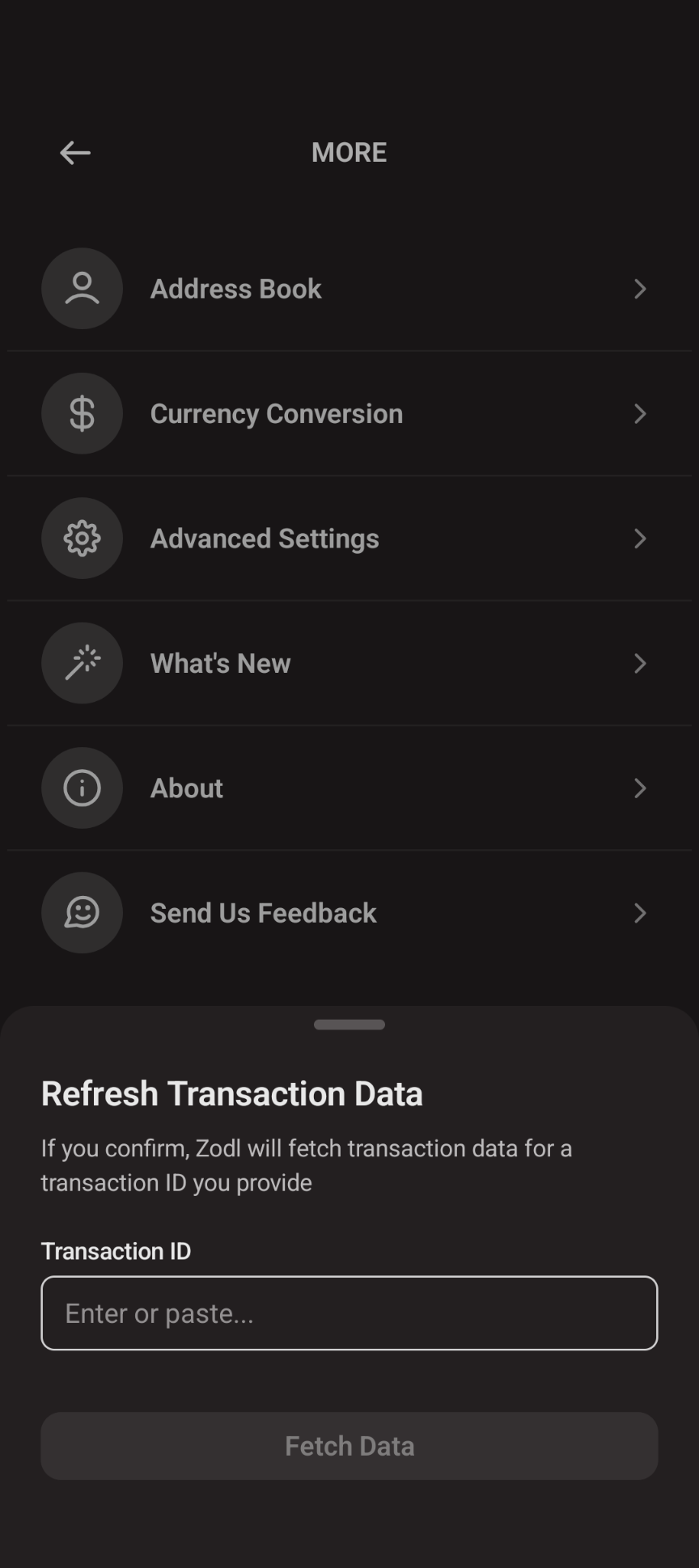
- If there's further data to be fetched and parsed, you'll see this transaction's details updated.
Further assistance
If you run into any issues performing the above, or have questions, please e-mail our support address and we'll be happy to help.