
Resyncing Zodl on Android
Sometimes, a wallet's database can experience issues that require a resync to fix. These issues could present as trouble spending certain coins in your wallet or an incorrectly reflected balance.
Verify your backup
You must ensure that the recovery phrase you have backed up is the same as you currently see in Zodl, and in the correct order.
You will need this to restore your wallet as part of the resyncing process.
If you follow the process below without having correctly backed up your recovery phrase, your funds will be lost.
To resync
- Ensure your recovery phrase is backed up. You will need it to restore any funds.
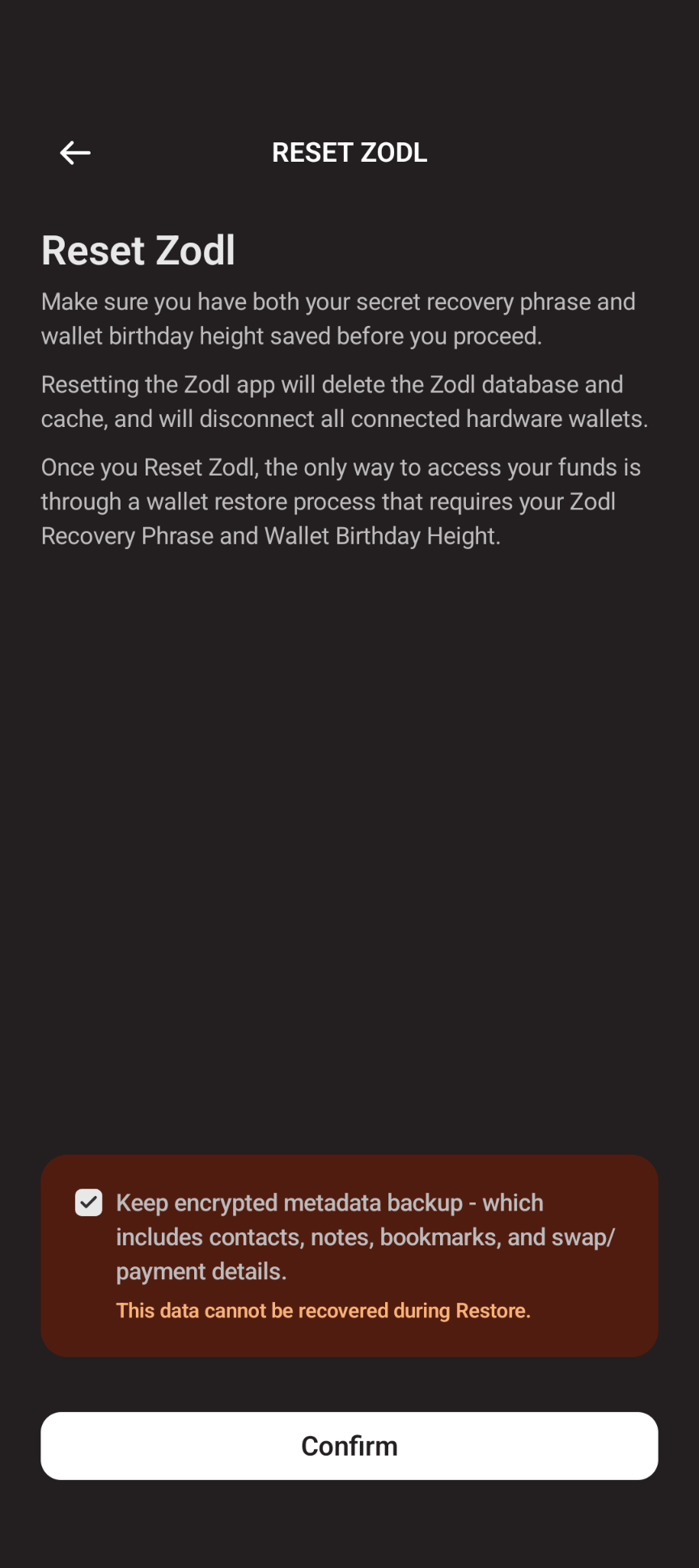
- In Zodl, navigate to: '...' > More > Advanced Settings > Reset Zodl
-
Read the warnings, keep the box checked to keep an encrypted metadata backup (contacts, notes, bookmarks, swap details), and confirm.
- Zodl will present its first install screen. Select 'Restore wallet'.
- Follow the wallet restoration flow.
- Keep your phone on and connected to power as it resyncs your wallet. This process may taken between a few minutes to hours based on the age of your wallet and the connection.
Afterwards, you should see your balance correctly reflected and any issues with spendability cleared up.
Please reach out to our support team should this method not address an issue you've encountered.