
Upgrading your Keystone for Ironwood
From time to time, you may need to upgrade the firmware of your Keystone hardware wallet, given security releases or compatibility with the latest Zcash network upgrades.
If your Keystone firmware is below v3.0.2, you must upgrade it for Ironwood (NU6.3). Without it, you will not be able to sign transactions or migrate your Keystone funds.
This article describes the process of doing so, based on whether you're using their USB or microSD card method. (If you had originally used a microSD card to switch to their 'Cypherpunk' firmware, continue using this method in order to maintain an air-gapped Keystone.)
Before upgrading
Ensure your Keystone backup
Make certain you have your Keystone's recovery phrase backed up. Upgrading firmware comes with the potential of needing to reset your device if the upgrade is unsuccessful. If reset, you must possess the phrase in order to recover your funds.
If you wish, you may use the Keystone's Seed Phrase Check tool to confirm the validity of your phrase on the device itself.
Ensure your Keystone is charged
Connect your Keystone to a USB charger until it's charged to 50% or greater. Firmware upgrades are battery-intensive, and a loss of power during the process could result in a failed upgrade.
Upgrade process
You may follow Keystone's instructions, or ours below. For shielded Zcash and compatibility with Zodl, you must be on Keystone's 'Cypherpunk' firwmare option.
Upgrading via USB
- Connect your Keystone to your computer's USB port. Your Keystone will prompt, 'Connect to This Device?'. Tap 'Approve'.
- In a Chromium-based browser (Brave, Chrome, Edge, etc.) on a desktop computer, visit Keystone's web-based upgrade site for the Cypherpunk firmware: https://keyst.one/usb-upgrade?type=cypherpunk
-
Click 'Connect' on the site. Your browser will prompt you to connect to the 'Keystone 3 Pro' device. Choose to connect.
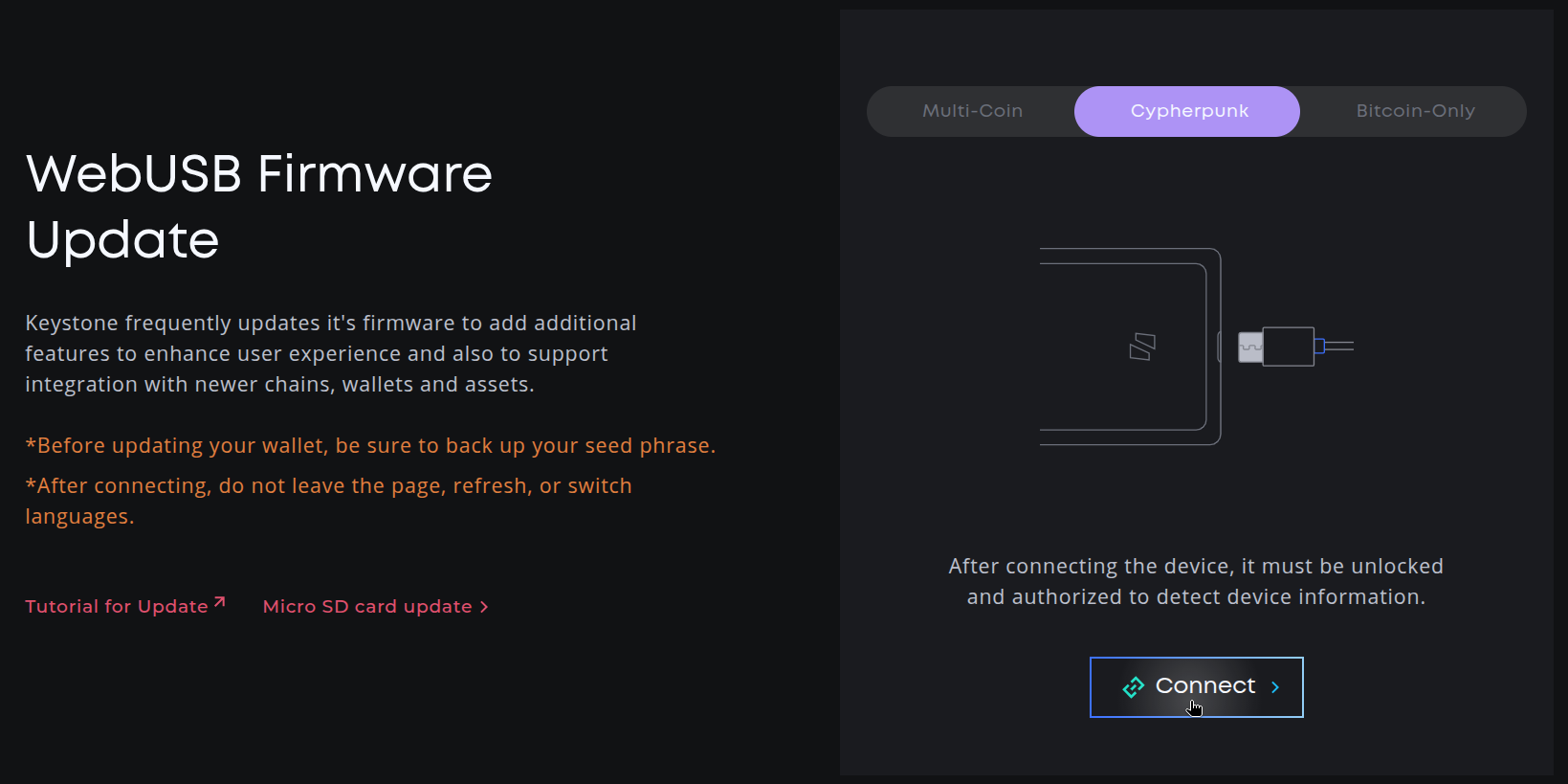
- Follow the instructions on the site to 'Install Update'. You'll be prompted to confirm your PIN on your Keystone.
- Do not disconnect your Keystone from USB at any point during the upgrade process. It will restart after upgrade completion. Input your PIN after the restart and confirm you can access the Keystone home screen.
Following the upgrade, you can confirm that you are on the new firmware by going to '... > Device Settings > About' on your Keystone.
Upgrading via microSD
-
Download the latest Cypherpunk firmware file (
keystone3.bin), from the Keystone site: https://keyst.one/firmware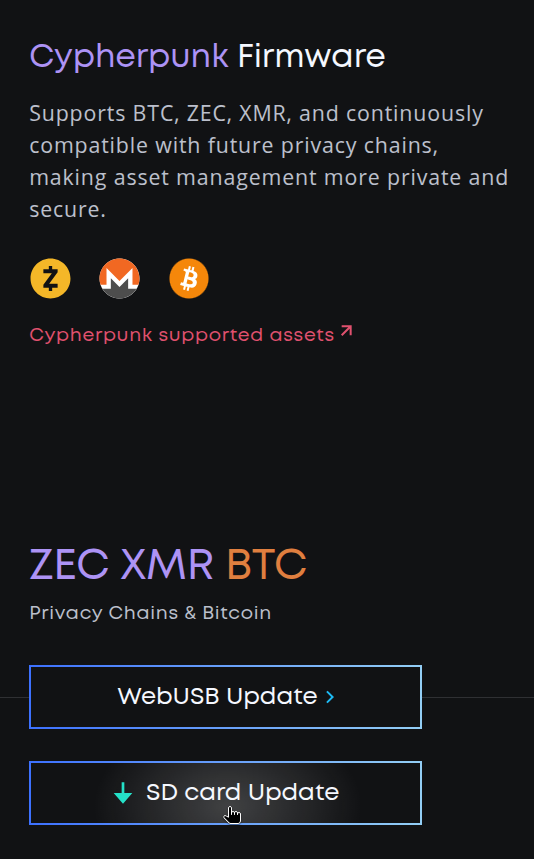
- Copy it to a microSD card connected to your computer. (The microSD card needs to be formatted as FAT32.)
- With the Keystone on, insert the microSD card into its slot. You'll see a prompt, 'New firmware detected.' Tap 'Update'.
- Input your PIN. You'll see 'Starting Update'. After a couple minutes, your Keystone will reboot.
- After it reboots, input your PIN again. You can remove the microSD card.
You may confirm that you are on the new firmware by going to '... > Device Settings > About' on your Keystone.
Migrating Keystone funds to Ironwood
Following your firmware upgrade, you may switch to your Keystone account in Zodl and follow the prompts to migrate funds.
Please see our primary article on moving funds to Ironwood.