
Migrating to Ironwood – Android Walkthrough
For the iOS version of this article, please see here.
Zcash has upgraded, introducing a new shielded pool called Ironwood. This article describes step-by-step migration process for Zodl users on Android.
Please see our primary article on moving your funds to Ironwood and what users ought to know.
The short version
- If you have an Orchard balance, Zodl will prompt you to migrate it to Ironwood. Migrating is simple and upgrades you to the latest secure pool.
- You stay in control of your funds the whole time.
- Our private migration feature will ensure your funds move with the greatest possible privacy, breaking it into unidentifiable amounts and sending at randomised intervals.
- If you do not wish to wait, you can also migrate immediately, though this reveals your full balance on-chain.
Step-by-Step
Migration widget: Upon updating Zodl, you'll see a prompt to migrate your Orchard balance to Ironwood. Tap Migrate to begin the process.
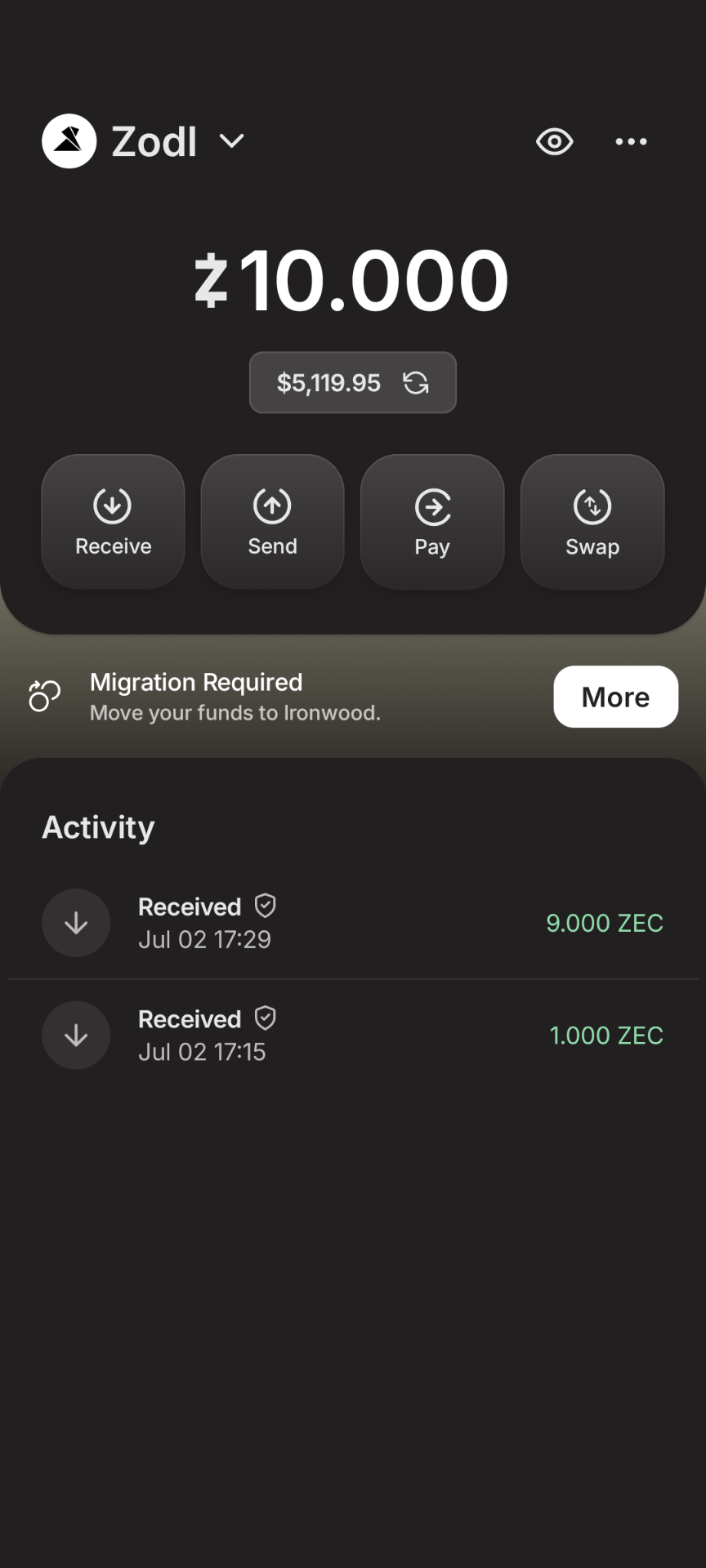
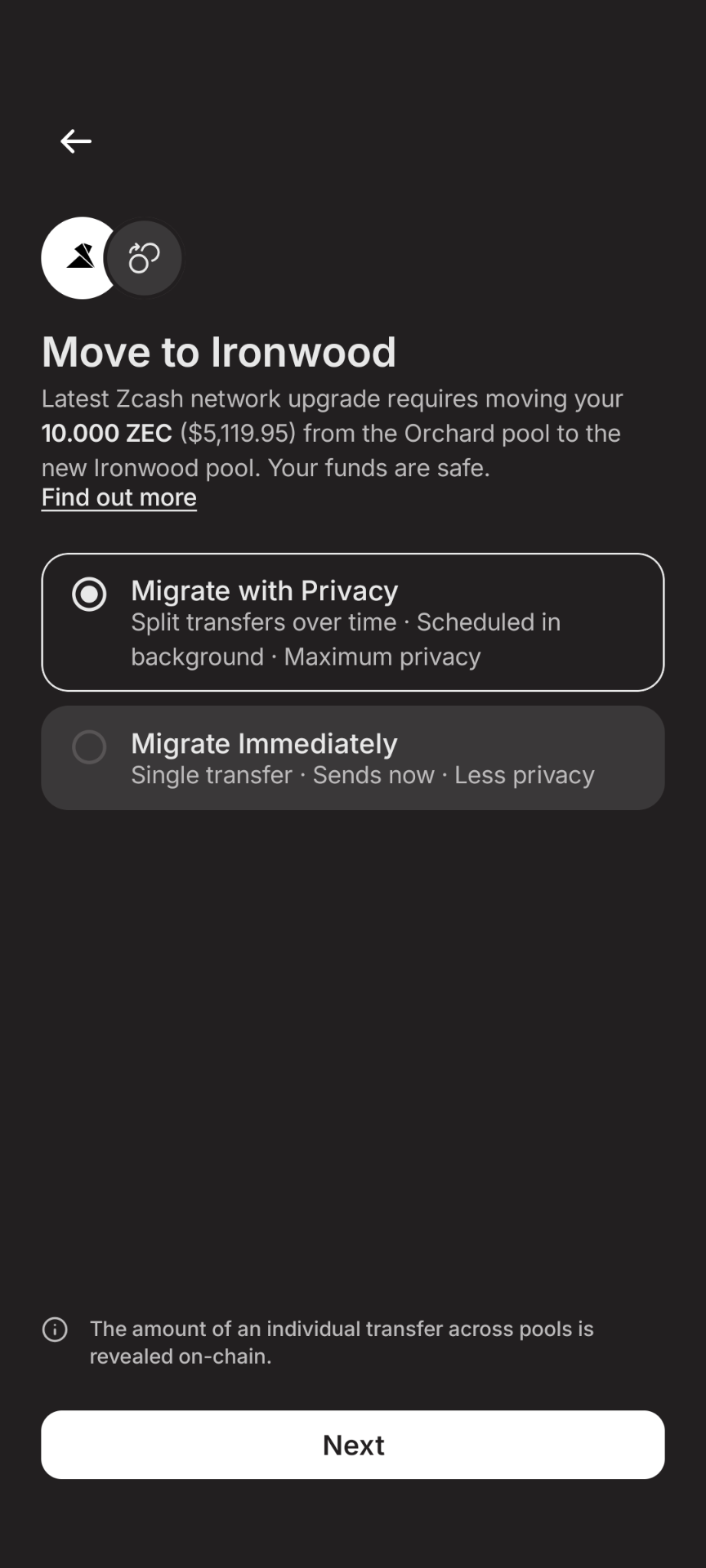
Migration options: You'll see two options, one to migrate immediately, another to migrate with privacy. Immediate migration will send your full balance to Ironwood in a single transaction. It's the fastest option, but offers less privacy because the full amount crosses over at once, a figure that is revealed on the blockchain. The rest of this walkthrough describes the 'Migrate with privacy' option.
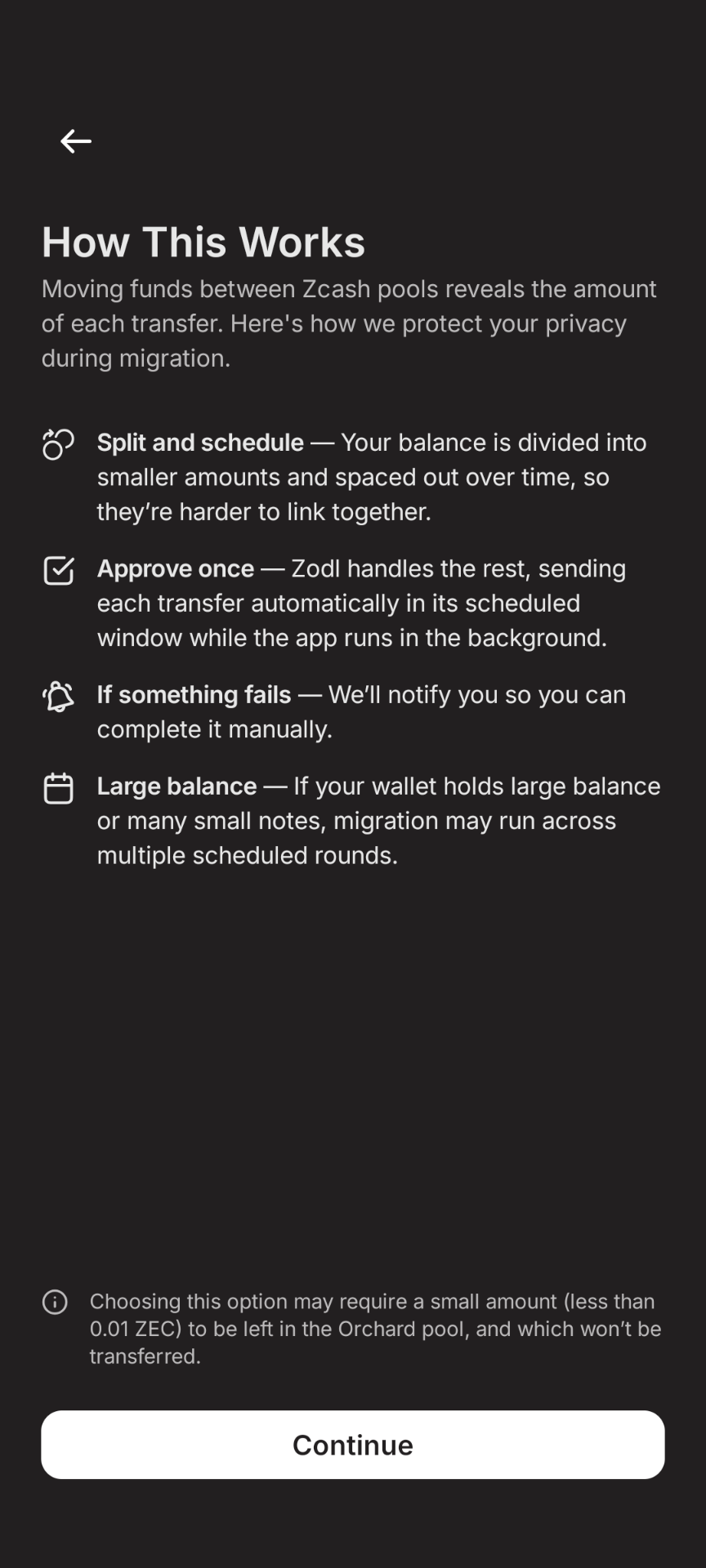
Summary: On the next screen, you'll receive a summary of how migration works.
Enable Tor protection: You'll be prompted to enable Tor. We strongly recommend enabling Tor, as not doing so will leak your IP address to the remove server, which is further linked to your migration amounts. The only reason to disable Tor here would be if Tor isn't legally permitted in your region, in which case, please highly consider using a trusted VPN (such as Nym) before continuing.

Allow background delivery: You do not need to keep Zodl open to continue the migration if you enable background processes for Zodl. This allows it to keep synced and automatically broadcast your migration transactions. If you do not permit this, you'll need to open the app when notified in order to progress through the rest of migration.

Allowing notifications: Zodl can keep you informed of the migration status. Allowing notifications is especially important if you deny background delivery to Zodl, as notifications will tell you when the next transaction is ready to send and to open the app.

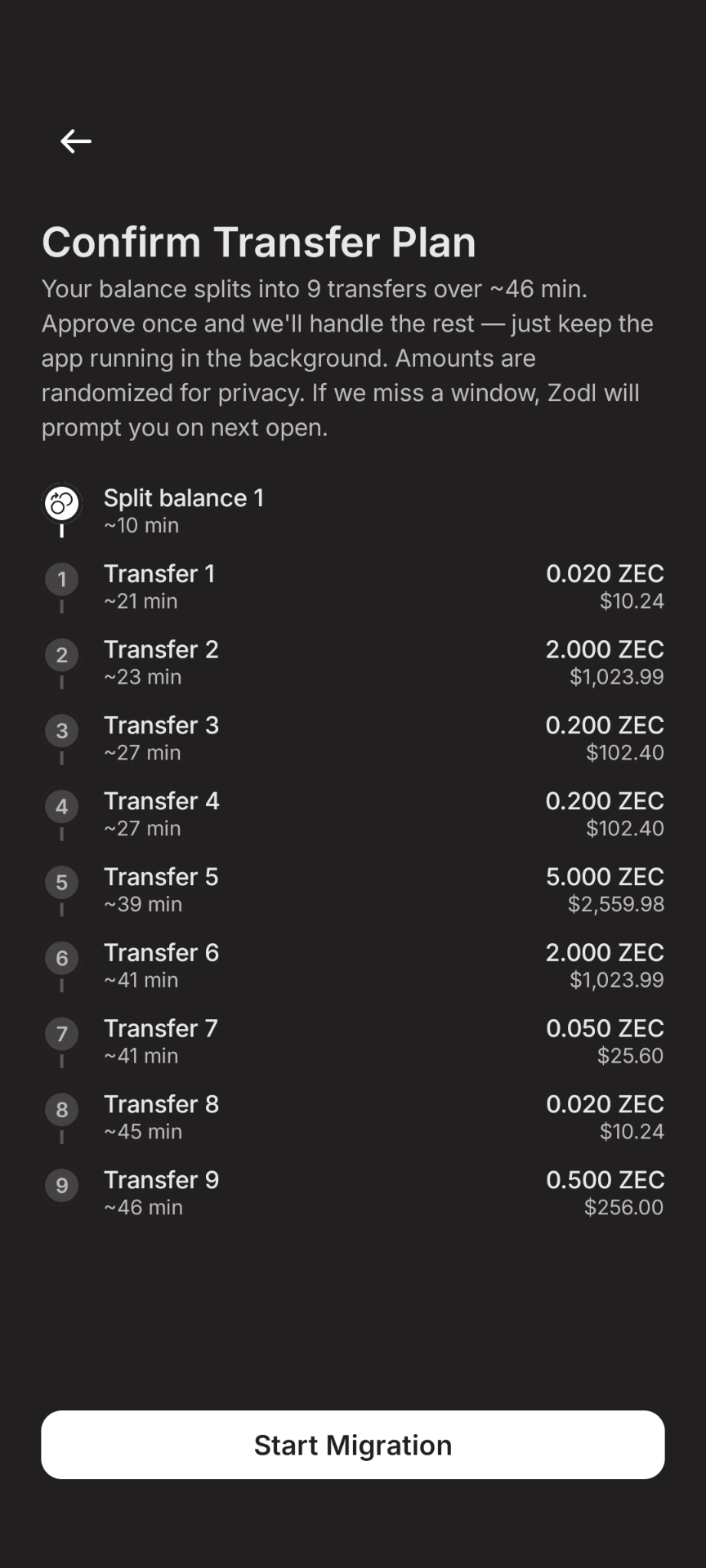
Confirm transfer plan: This screen shows the plan for each individual migration transaction and their approximate timing. After reviewing, tap 'Start migration'. You'll be prompted for authentication to sign the migration transactions.
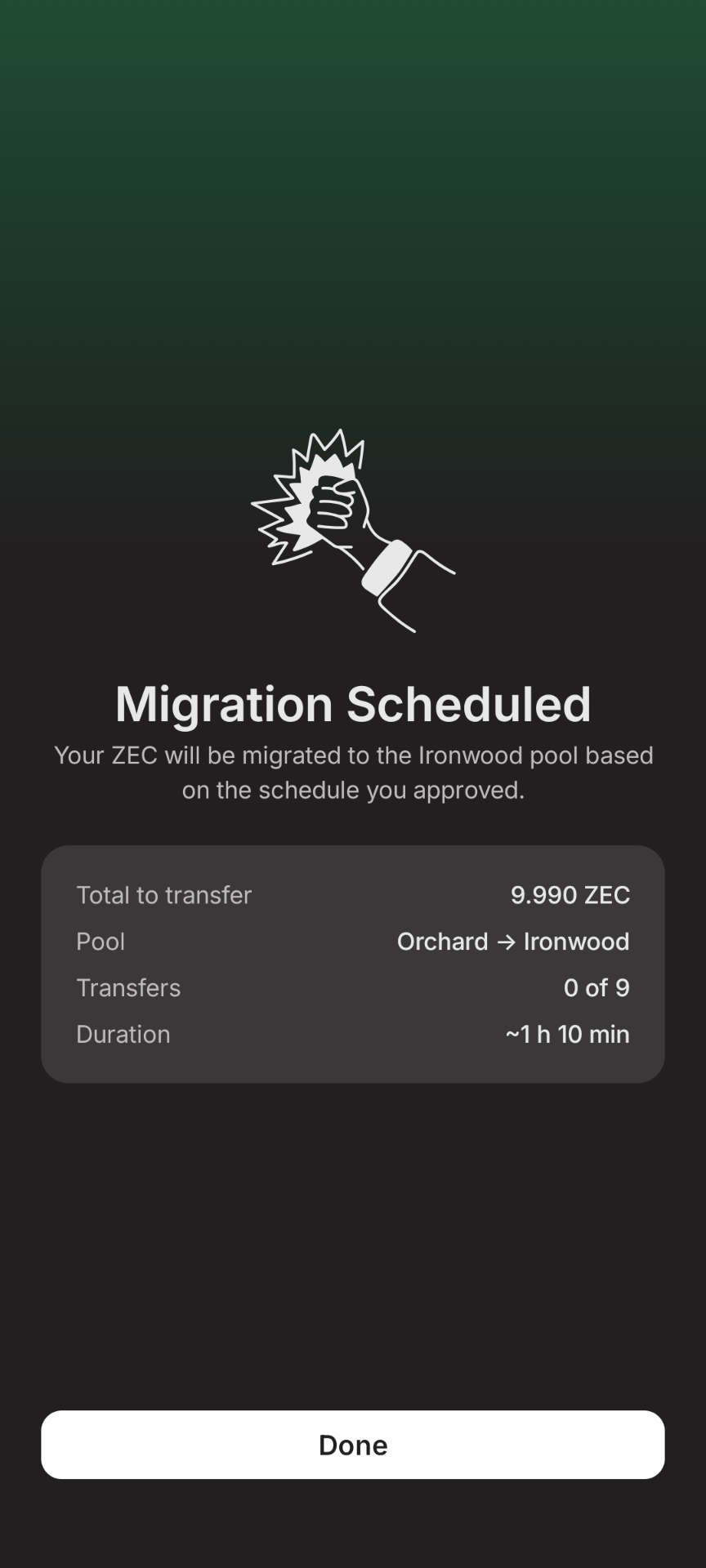
Migration scheduled: You'll receive confirmation after signing the transaction plan, with a summary of what to expect, including timing.
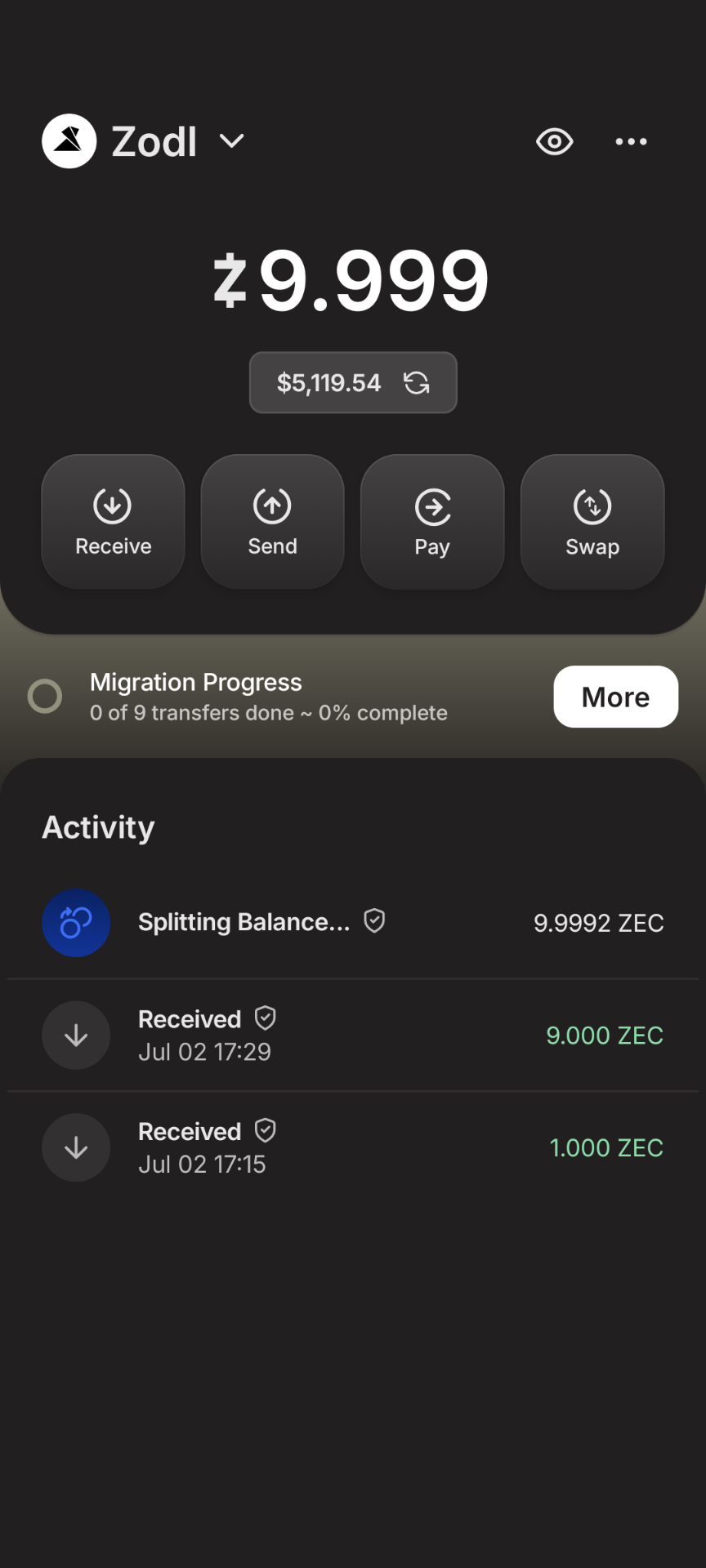
Migration progress: On your main Zodl screen, you'll see a persistent widget informing you of the status of the migration process. Tap 'More' to see details.
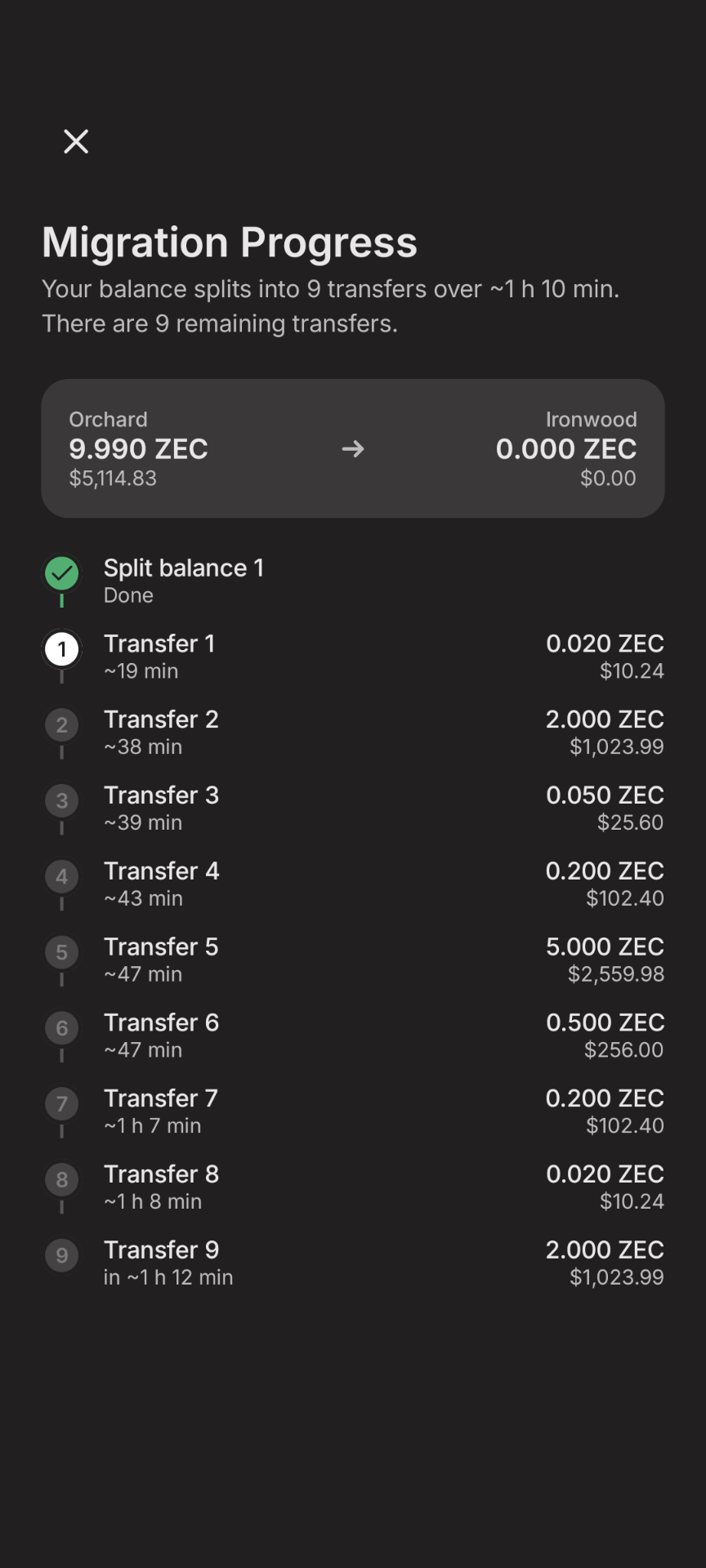
Migration progress details: Here you'll see the status of each transfer in the process.
Notifications: If Zodl is not the active screen, you will periodically receive notifications informing you of the migration status.

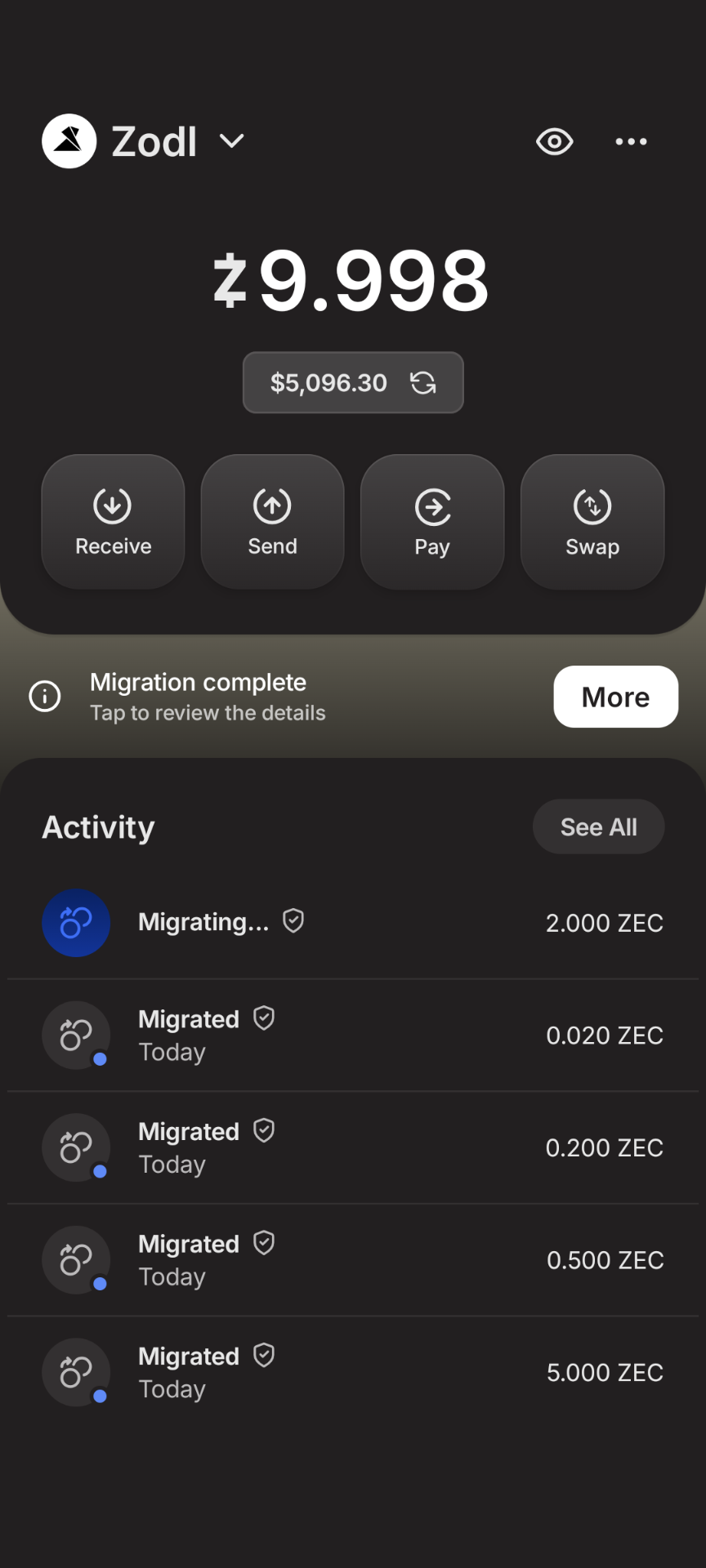
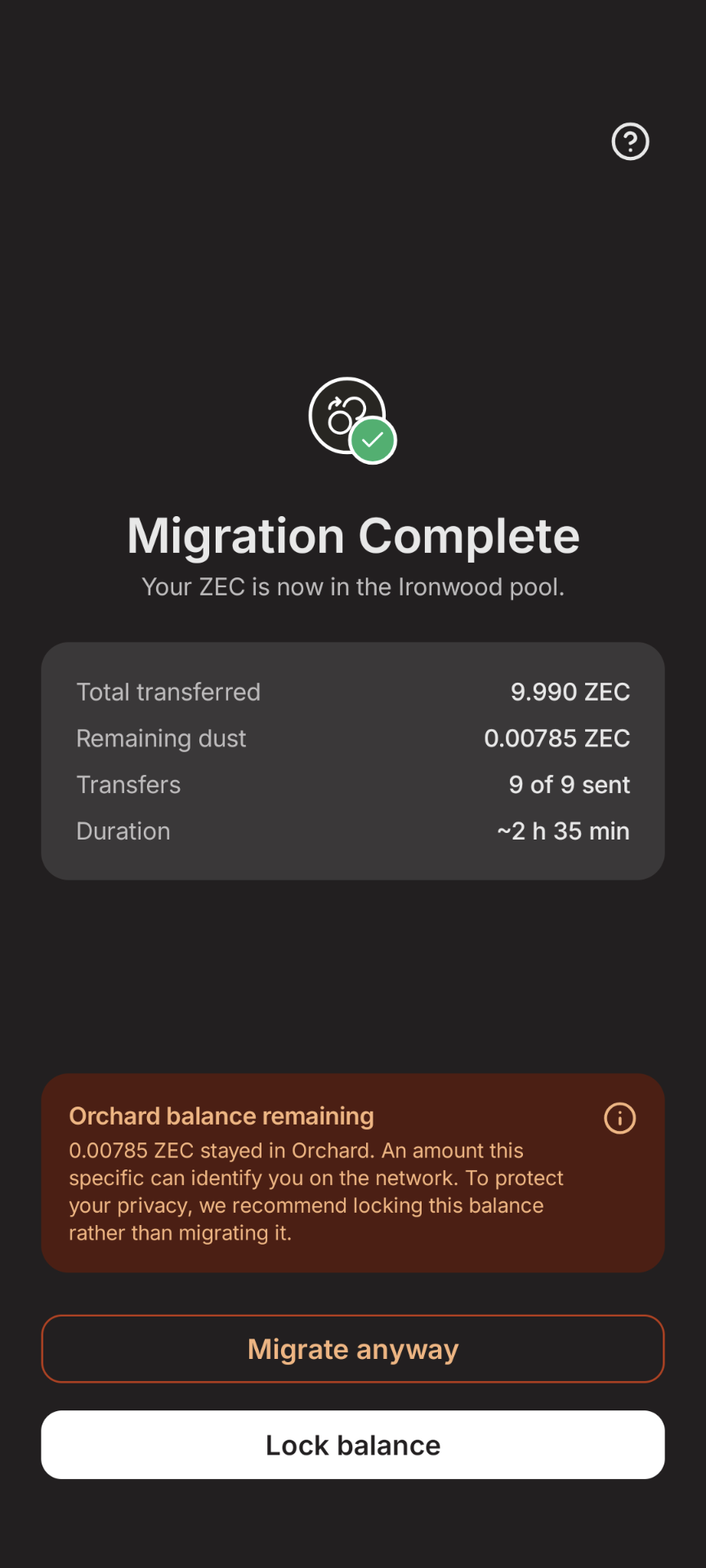
Migration complete: Once migration has completed, you'll be notified by the widget below. Tap 'More' for next steps.
Locking funds: The migration process transfers standardised amounts, which means a remainder from your Orchard funds is not moved by default. This screen allows you to sweep it (which can be indentifiable), or for better privacy, lock it from being inadventently spent when using Zodl. This lock is only local to this Zodl instance, and does not remain if importing your wallet into another instance. A future update of Zodl will allow you to unlock these funds.
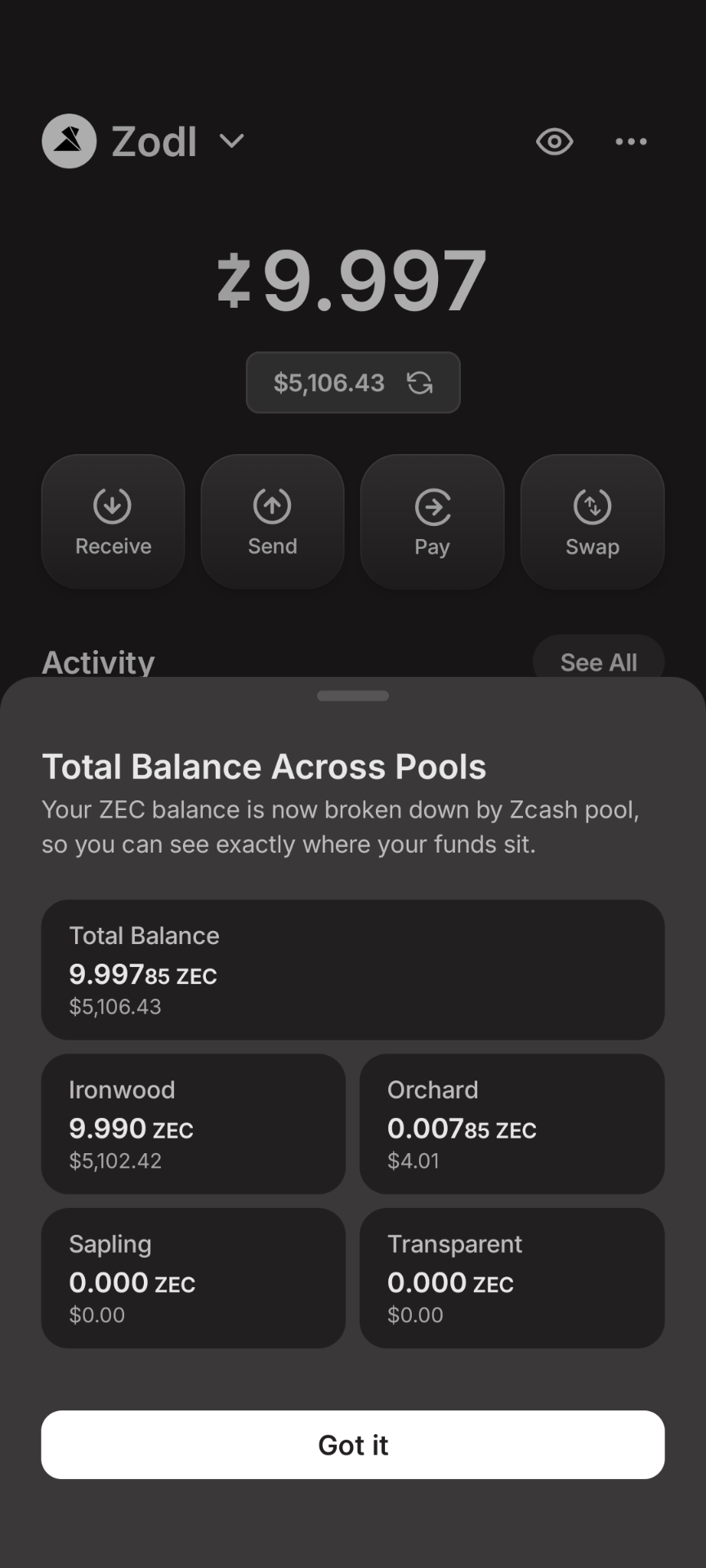
Viewing your pool balances: On Zodl's main screen, you can confirm your migration to Orchard by tapping your balance. This shows a breakdown of your funds across all pools.
Still need help?
If something doesn't look right, or your migration seems stuck after reopening the app, contact us at support@zodl.com and tell us where you are in the flow.