
Retrieving a past deposit address
If you received a deposit, such as one for an inscription project (like zkSNARKs), Zodl doesn't currently show the address associated with that deposit.
While this will be included in a future release of Zodl, there is an option to retrieve the address for a given deposit's transaction ID. Follow the steps below to export and search your Zodl database for this info.
IMPORTANT! The information contained within the exports are extremely sensitive, and includes your wallet's viewing key, which if intercepted by anyone will provide them the ability to view your present balance and all past and future transactions your wallet makes. Be exceedingly careful with the database file. Delete it after you are finished with it.
Obtaining the Transaction ID
In your wallet's Activity panel, identify the deposit for your transaction, and copy the transaction ID found in the details:

Send this transaction ID to yourself so that you can access it on a desktop computer that you'll use for the next steps.
Exporting the private data files
In Zodl, go to: '...' > More > Advanced Settings > Export Private Data.

Carefully read the warning text on this screen, then tick the acknowledgement checkbox and tap 'Export'.

Two files are generated: ZcashSdk_mainnet_data.db and zashiPrivateData.zip. The one we need is the former.
You'll be asked where to save these, which could be locally on your phone, or to an application such as Signal or Proton Drive.
Please choose a secure location, one that isn't exposed to other apps, and do not send them to yourself over a transparent medium, such as unencrypted e-mail. These files contain highly sensitive information which will expose the history of your transactions, among other private details. The best option is Signal's 'Note to Self' feature, which you can then access on the Signal Desktop app.
Inspecting the database
When you've securely transferred the .db file to your computer, you may inspect it using a trusted application, such as DB Browser for SQLite.
After installing, open ZcashSdk_mainnet_data.db with DB Browser for SQLite.
Click on the 'Execute SQL' tab, and run the following query, replacing the TXID contained below (2de30395a5835d8e9cde7ce03dfeb4582fbdd907f9c56a4a7374055d65a2dd11 ) with the Transaction ID that you retreived:
WITH RECURSIVE r(i, s) AS (
  SELECT 1, ''
  UNION ALL
  SELECT i + 2, substr('2de30395a5835d8e9cde7ce03dfeb4582fbdd907f9c56a4a7374055d65a2dd11', i, 2) || s
    FROM r WHERE i < 64
)
SELECT a.address
  FROM ironwood_received_notes n
  JOIN transactions t ON t.id_tx = n.transaction_id
  JOIN addresses    a ON a.id = n.address_id
 WHERE hex(t.txid) = upper((SELECT s FROM r WHERE i = 65));
Click the 'play' button to run it. The result will be the addresses associated with the deposit.
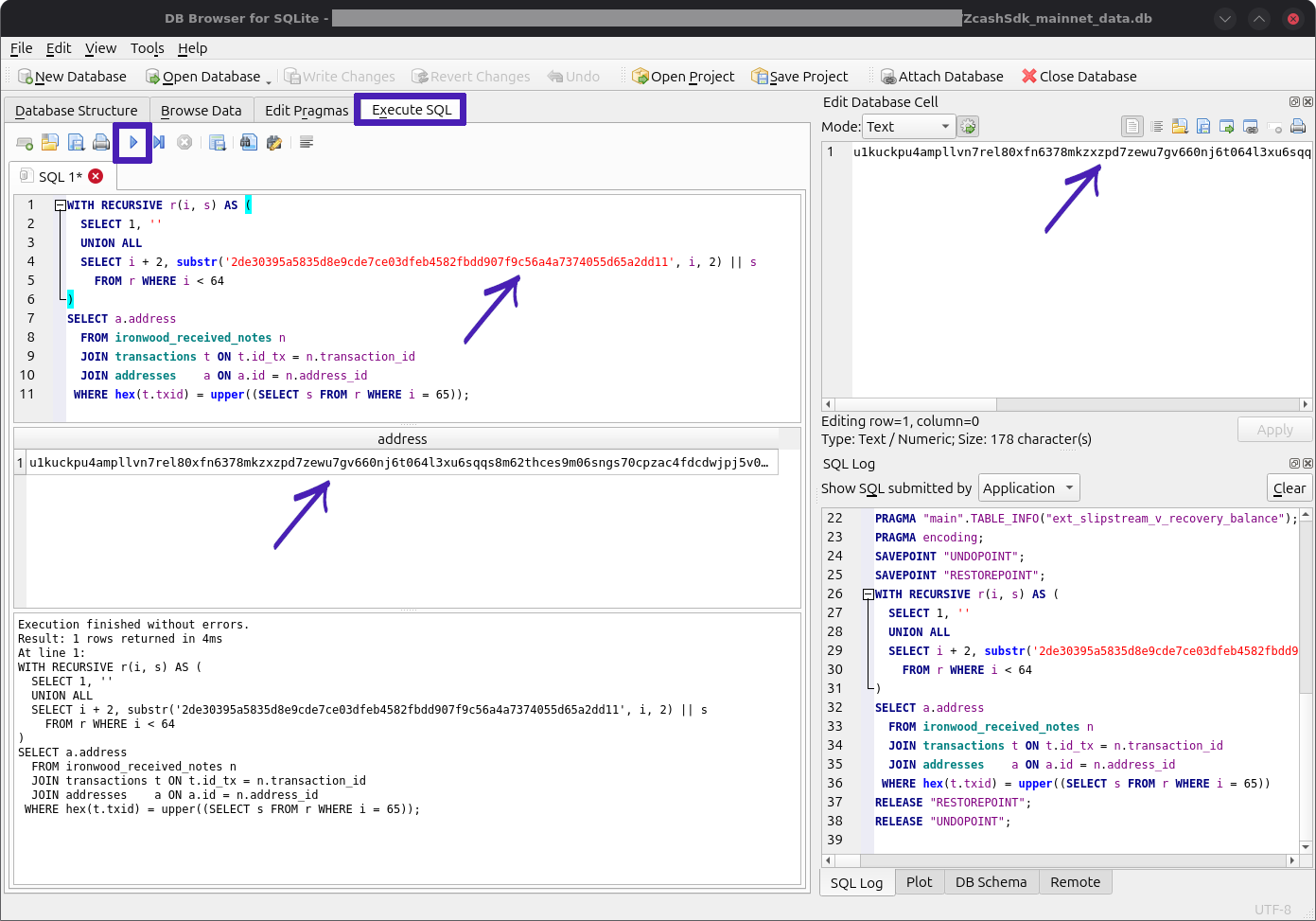
Copy the address by double-clicking on the result in the middle box on the left, then select and copy it from the box in the upper-right ('Edit Database Cell').
Other notes
A backup of this database will not recover your wallet. Only a copy of your recovery phrase can do so.
When you're done with inspecting your wallet database for the purposes you needed it for, the safest thing to do is delete the export you made of it. Files on desktop computers are often accessible by any application that runs on it.